


- HOME
- WHAT'S NEW?
- Busy Bee Service
- Switch-A-SPORTS
- Switch-A-ROOMS
- HELP/FAQs
- Car Seat Waiver (PDF)
- SCHEDULE & LOCATION
- PRINTABLE FLYER (PDF)

INFORMATION SIGN-UP
- INFORMATION

- NEW CONSIGNOR REGISTRATION
- RETURNING CONSIGNORS
ENTER ITEMS - GETTING ITEMS READY
- ITEMS ACCEPTED
- TAGGING
- DROP OFF SCHEDULE:
- CONSIGNOR AGREEMENT
- RECALLS
- SWITCH-A-SCHOOL 101
- CONSIGNOR 101 VIDEOS
- CHECK SALES

- INFORMATION SIGN-UP

- INFORMATION/SIGN UP
- FEATURED

- DONATIONS
- JOIN MAILING LIST
- CONTACT US
- PHOTO GALLERY
- EMAIL

Tagging/Consignor Instructions


- Log in or Register as a new consignor.
- Get card stock for printing your tags.
- Gather and organize your items. Make sure everything is stain-free and in good working condition.
- Enter your items online.
- Print your tags.
- Affix tags securely on each item.
- Drop off your items
- Shop the sale and track your sales online
- At the end of the sale, pick up your unsold items and YOUR CHECK!
Tagging Tips
- Click on "Switch-A-School 101" for a detailed consigning manual. This manual will teach you everything you need to know including the tagging and barcode instructions!
- The more securely you attach your tags, the less likely they are to fall off during the sale.
Our barcode tagging system is simple, quick, and easy — and it will:
- Save you time when preparing your items
- Ensure checkout accuracy (in case of any human keystroke errors)
- Speed up checkout time
- Track your personal sales so you can check them each evening after closing
DIRECTIONS FOR ENTERING YOUR ITEMS
- Register as a Consignor for Columbia.
- Log into your Consignor account.
- Once you log in you will see your Consignor Home Page. Scroll down and register for our upcoming sale, Un-register for our upcoming sale, Schedule your drop off appointment, Sign Up to volunteer, and sign the consignor agreement and worker agreement.
- To enter items, click on "Activities Menu" that is located at the top. A drop-down menu will appear.
- Click on “Work with my consigned items”
- This will put you into the inventory portal, where you add the items you would like to consign.
- The printing tag utility is available on the “Work with your consignor inventory” link. Please be sure to disable pop up blockers when you are printing because your tags pop up in a new window for printing.
*Please Note: Once you have printed your tags out – YOU CANNOT EDIT THE PRICE OF YOUR ITEM! The price is encoded on the barcode and prices must match in the system. If you edit the price, you must print out a new tag.
BARCODE PRINTING TIPS
To ensure we are able to sell as many of your items as we can during peak times without making any errors or missing any items, it is very important that your tags are scannable. Great features of our sale like nightly sales updates and quick check delivery are dependent on scannable barcodes.
The printed quality of your barcode is very important! Please print a page of 3 or 4 test tags to see how they look. Use a critical eye when checking the quality of the barcodes.
If your barcodes look like this, you are good to go.

If it looks like one of the barcodes below, realign your print cartridge and try again. Print tags using the NORMAL or DRAFT setting, not high quality – ink will be too dark!

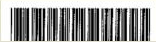
If it looks like this, replace your ink cartridge and align the new one.

OTHER OPTIONS FOR PRINTING TAGS:
If you do not have access to a printer, please go to our contact page and e-mail us for other options.
Tagging Tips
- Use white or pastel card stock for printing your tags.
- Do not use regular printer paper — tags printed on regular paper tear easily and can get lost during the sale.
- Print using black ink on the Normal or Draft print setting. (The “Best” quality setting is often too dark and can cause the barcode to bleed.)
- For best results, print your tags using Microsoft Edge. Other browsers (such as Mozilla Firefox) sometimes cause description text to print as gibberish.
The Importance of Good Item Descriptions
Please take time to write good, detailed descriptions for your items!
If a tag gets lost or falls off, the description you enter is the only way we can match the item back to you.
For example, simply writing “DRESS” would not help us reconcile a lost tag with the correct item — we might have several dresses with missing tags. A clear description helps us quickly identify your item.
Helpful Tips for Better Descriptions:
- Include the brand, color, and whether it’s a 2-piece set (if applicable).
- Adding words like “New” or “Only Worn Once” can make your item much more appealing to shoppers!
TAG EXAMPLE
You will be able to print 6 tags per page. You must use card stock weight paper! It can be purchased at any office supply store, Walmart or Target. White is preferred!
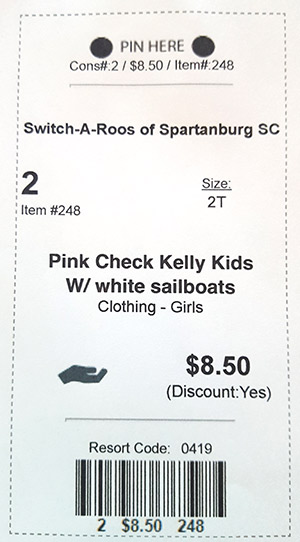
If you are using a tagging gun, PLEASE attach your tag to the inside label tag or place in a seam of the garment. DO NOT make a hole in the garment.
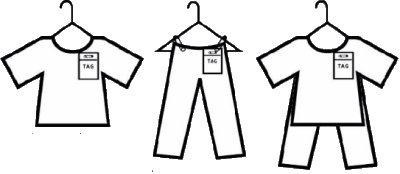
Please note hanger direction and tag placement. This is how your items should look prior to bringing to drop off.
- On clothing garments, attach the tags like the picture above.
- All clothing items should be hung with the hanger hook facing in the left direction, like a ? mark.
- Please use safety pins when hanging pants and skirts at the TOP of the hanger.Do not fold them over the hanger as customers can not see them well.** Note – Please do not combine outfits with different sizes.
For directions to properly hang and tag clothes, please click here to watch the Consignor 101 Videos.